Photogrammetry Capture
Walk around an object capturing dozens of photos. Apple's on-device Object Capture pipeline reconstructs a textured 3D model with realistic geometry.
Walk around a real-world object with your iPhone - NFC.cool runs Apple's on-device Object Capture to reconstruct a textured 3D model. Export the finished model into AR or any 3D tool.


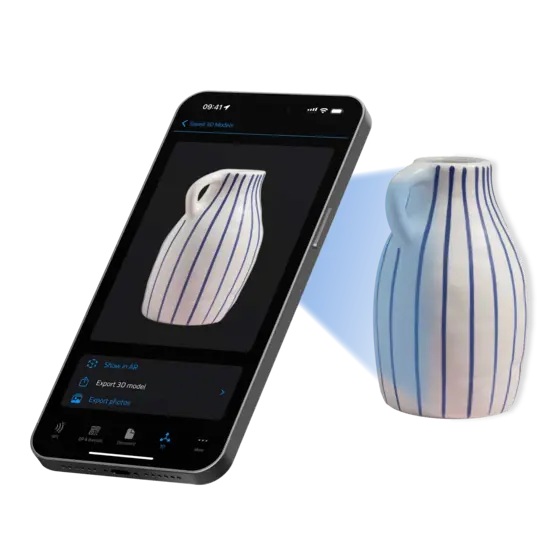
Walk around an object capturing dozens of photos. Apple's on-device Object Capture pipeline reconstructs a textured 3D model with realistic geometry.
Review the model in 3D before exporting. Inspect the raw images captured during the session if you want to see what the camera saw.
Drop any scanned object into your living room via AR Quick Look. Share USDZ files with friends - they can view them right inside Messages.
Export a textured USDZ for AR Quick Look, or plain geometry as USD, OBJ, STL, PLY, or ABC for Blender and the rest of the 3D content pipeline.
USDZ is Apple's native AR format. Share a scanned object in iMessage or AirDrop and the recipient can spin it, place it in their own space, and screenshot it - all from the message preview, no app install. Great for product previews, sculpture documentation, or just showing off.
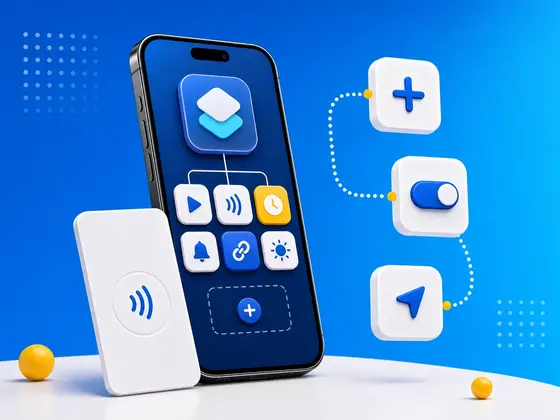
NFC.cool plugs straight into the iOS Shortcuts app with built-in actions: grab the last scanned NFC tag, write a message to a tag, open the scanner, or pull the last scanned QR code. Chain them into Shortcuts that scan a tag, parse its payload, and kick off whatever you want next - automation, logging, journaling, you name it. The same actions power the lock-screen Scan Button control on iOS 17+.
Scanned models live in your iCloud Documents folder, so the iPhone you scanned with, the iPad you reviewed on, and the Mac you'll edit on all see the same library. Snap on the go, finish on the desk.

| Free | Platinum | |
|---|---|---|
| Scan 3D Objects | ✓ | ✓ |
| Place Object in AR | ✓ | ✓ |
| Export 3D Models | ✗ | ✓ |
| Export Photos | ✗ | ✓ |
Yes. Apple's Object Capture session requires a LiDAR-equipped device - that means iPhone Pro (12 Pro and newer) or iPad Pro from 2020 onwards. Non-Pro iPhones don't ship with LiDAR.
A few minutes of walking around the object, then a couple of minutes of on-device reconstruction. Larger / more textured objects take longer.
You can export to OBJ and convert to STL in Blender, MeshLab, or any standard 3D tool. The model fidelity is best for medium-sized, well-textured objects.
Object Capture (this feature) builds a single 3D model of a thing. The Room Scanner uses LiDAR and Apple's RoomPlan to build a floor plan of a space - walls, doors, furniture. Both need LiDAR; they answer different questions.
★4.5·73,500 ratings·Free