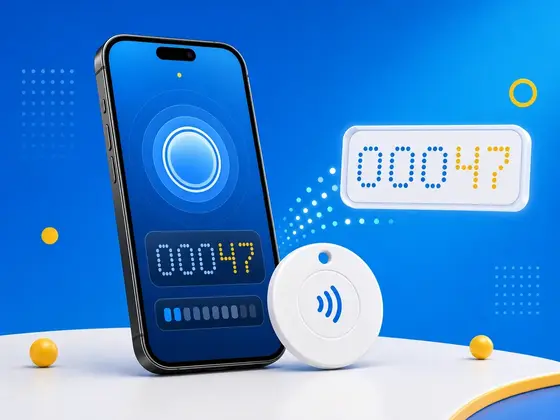
Say you print the same URL onto fifty NFC stickers and stick them on fifty products, fifty posters, or fifty business cards. A week later, someone asks the obvious question: which one actually got tapped? And how many times?
I’ve built NFC.cool for years now, and the usual answer I hear is a server. You generate fifty unique links, point them all at a backend, and let analytics software count the hits. It works, but now you are running infrastructure, paying for it, and trusting it to stay online for as long as those stickers exist. That always struck me as a lot of moving parts for a question this simple.
There is a simpler way, and it has been sitting inside the NFC chip the whole time. Many tags can count their own scans. With the right setup, a tag will tell you how many times it has been read and which physical tag it is, with no backend involved at all. This is one of my favorite NFC tricks to show people, so here is how it works, and how to set it up.
What an NFC Tap Counter Actually Is
Most NFC stickers you can buy use chips from the NTAG21x family - NTAG213, NTAG215, and NTAG216. Those chips have a small feature that I find most people never knew was there: a built-in counter. Every time the tag is read, the counter ticks up by one. It lives in the chip’s hardware, not in an app, and not on a server. (If you want the deeper breakdown of these chips, I covered them in NFC tag types for iPhone.)
The way I describe it is an odometer for the tag. A car’s odometer counts miles whether or not anyone is watching it; the NFC counter counts reads the same way. The number is always there. The only question is whether anything is set up to show it to you.
That is exactly what the NFC Tap Counter feature in NFC.cool Tools does, and it is the part I’m proudest of. It configures the tag once so that, from then on, the tag reports its own count. You do not need to scan the tag yourself to check the number, and you do not need the app present when other people tap it. The tag does the counting and the reporting on its own.
The same chips also carry a unique tag ID - a serial number burned in at the factory, a bit like a MAC address on a network card. The Tap Counter feature can surface that too, which is what lets you tell fifty identical-looking stickers apart.
How It Works, Without the Jargon
When you write content to a tag with Tap Counter turned on, the app does something I think is genuinely clever. It embeds a row of placeholder characters into whatever you are writing - a stand-in for the count and the ID. That part still feels a little like a magic trick to me, even after building it.
From then on, the chip handles the rest. As the help screen inside the app puts it: “The app embeds placeholder bytes in your content. On every scan, the chip replaces them with the current tap count (and/or tag ID) before the iPhone reads it. No server or internet needed.”
So the sequence on every tap looks like this. Someone holds their phone to the tag. The chip wakes up, bumps its counter, swaps the placeholders for the real numbers, and only then hands the finished content to the phone. The phone that scanned the tag never sees a placeholder - it sees a complete URL with a live count already baked in.
The thing I want you to take away is that you only do the setup once. After that first write, the tag is on its own: it will count and substitute for every tap, by every person, on every phone, for the life of the sticker. Nothing in that chain touches the internet. The counting happens in the chip. The substitution happens in the chip. If you point the finished URL at a website you control, your own server sees the count arrive - but that is your choice, not a requirement of the feature.
What You Can Actually Do With It
A self-counting tag sounds like a neat trick until you match it to a real problem. These are the four uses I keep coming back to when people ask me what it is for.
Tell which physical sticker was scanned. This is the fifty-stickers problem from the start of this post. Put the same URL on every tag, switch on the tag ID, and each tap arrives stamped with the serial number of the exact tag it came from. One URL to manage, fifty tags you can still tell apart.
Limit free access. Because the count travels with every tap, you can act on it. Run a promotion where the first hundred scans get the demo version and later scans get redirected somewhere else. A limited print run can hand out the full reward until the counter passes a threshold you picked. The tag enforces “first come, first served” without a signup system behind it.
Track engagement. Stick a tag on a business card, a poster, a product box, or a shop window, and the counter becomes a quiet engagement metric. You can see whether a card has been tapped twice or two hundred times without building an analytics pipeline for it.
Prove authenticity. The counter only ever goes up - it cannot be wound back. A number that can only increase is hard to fake convincingly, which is why I think it earns its place in limited-edition items and anti-counterfeit checks. A genuine tag has a plausible, climbing history; a cloned one does not. If that side of NFC interests you, I went further into it in how NFC keeps encrypted secrets safe.
Put a few of those together and you get something like this: a craft maker drops a tag into each numbered run of a product, all pointing at the same landing page. The tag ID tells them which item a buyer is holding, the count tells them how often that buyer has come back, and because the count only rises, a reseller cannot quietly pass a copy off as the original. No accounts, no database, no monthly bill - just the chip doing its job. That is the kind of result I built this feature for.
Setting It Up, Step by Step
The feature lives in NFC.cool Tools, on both iPhone and Android. It is part of the Pro (Platinum) subscription, so you will need that to write counter-enabled tags. If you have never written a tag before, my walkthrough on how to write NFC tags on iPhone covers the basics first.
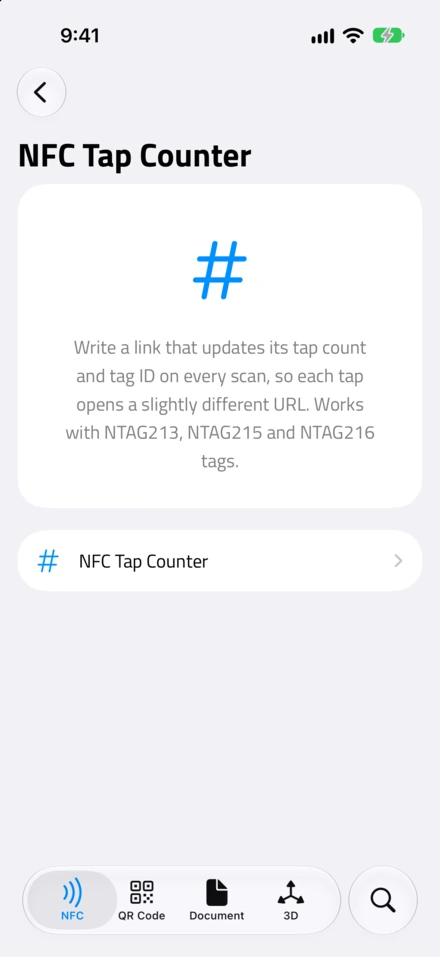
Open NFC.cool Tools, go to the NFC Tools section, and tap NFC Tap Counter.
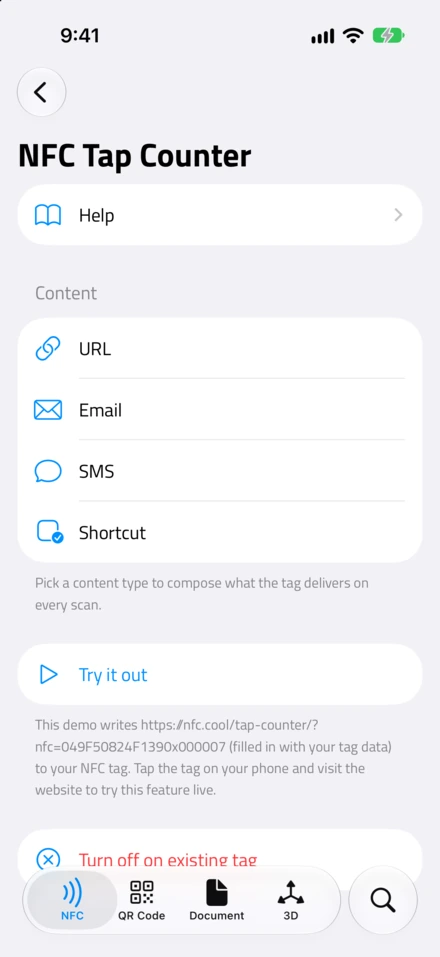
Pick what the tag should deliver: a URL, an Email, an SMS, or a Shortcut. (Shortcut is iOS only, since Shortcuts is an Apple app; URL, Email, and SMS work on both platforms.)
Compose that content the way you normally would - type the link, write the message, choose the shortcut.
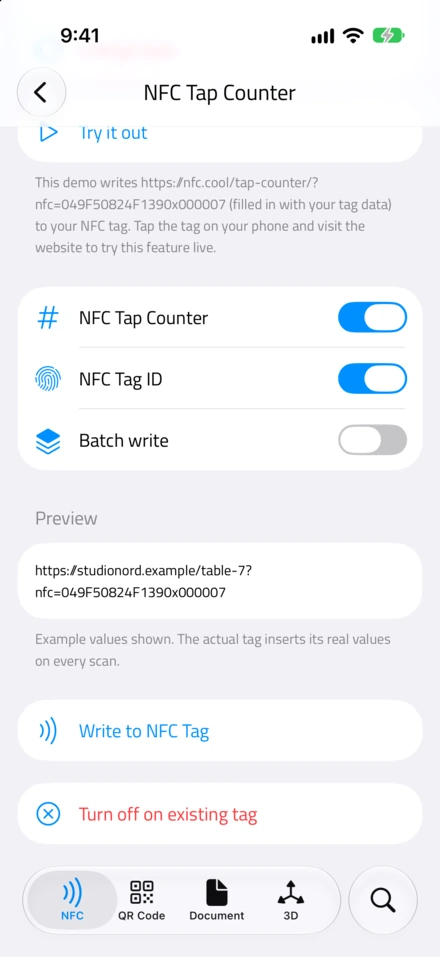
Turn on the toggles you want: NFC Tap Counter adds the live count, and NFC Tag ID adds the tag’s serial number. You can use either, or both.
If you are programming a batch of tags with the same content, switch on Batch write so the scanner stays open and you can write one tag after another.
Check the Preview. It shows example output with stand-in values, so you can see exactly where the count and ID will land before you commit.
Tap Write to NFC Tag and hold a tag to the top of your phone.
That is the whole setup, and I deliberately kept it that short. From that point the tag is self-sufficient - it counts and reports on its own, for every person who taps it, with or without the app.
If you ever want to stop it, the app can turn the counter off on an existing tag. The chip stops swapping in live values, but the content stays on the tag exactly as it was last written. One detail worth knowing: the chip keeps counting internally even after you switch the substitution off - the count is never lost, it just stops being shown.
Where the Count and Tag ID Show Up
Where the values land depends on the content type you chose. With both toggles on, the tag ID and the count are inserted together - the ID first, then the count, joined by a small x. Using 049F50824F1390 as the tag ID and 000007 as the count, here is the before and after for each type:
URL:
https://example.com/pagebecomeshttps://example.com/page?nfc=049F50824F1390x000007Email body:
Hi, here's my card.becomesHi, here's my card. 049F50824F1390x000007SMS body:
Order confirmed!becomesOrder confirmed! 049F50824F1390x000007Shortcut input:
log-entrybecomeslog-entry 049F50824F1390x000007
The values are appended cleanly, so the rest of your content keeps working as normal. Switch one toggle off and you simply get the other on its own: just the count (000007) or just the tag ID (049F50824F1390).
Now, the question I always get here: why 000007 and not just 7? The count is written in hexadecimal - the base-16 number system that runs 0 through 9 and then A through F - and padded out to six characters. So 000007 is simply the tag’s seventh scan. Once you pass scan nine you start seeing letters: 00000A is 10. The ceiling is FFFFFF, which is roughly 16 million scans, more headroom than almost any real-world tag will ever need. The tag ID is a longer hex string - the chip’s 7-byte factory serial number - and unlike the count it never changes.
If you are routing the finished URL to your own website, your server reads those values straight out of the address: log the count, compare it to a threshold, or tell one tag from another by its ID.
Which Tags You Need
This feature depends on the chip, so the tag matters. NFC.cool supports NTAG213, NTAG215, and NTAG216 chips for Tap Counter. Those are the most common NFC stickers sold for phones, so they are easy to find, but I would still check the chip type before you buy in bulk. If you try to use a tag the feature does not support, the app warns you rather than writing something that will not work - I made sure of that because I have seen how frustrating a silent failure is.
If you need to stock up, our recommended NFC tags page lists the NTAG216 stickers we use and test against. And if you are new to choosing tags, my guide to the different types of NFC tags for iPhones walks through the trade-offs in plain terms.
A Few Quick Questions
Can I reset the counter? No. It is a one-way counter built into the chip and it can only go up. That is deliberate, and honestly the whole point - a counter you could reset would be useless for limited editions or anti-counterfeit checks. If you need a fresh count, use a new tag.
Can anyone read the count, or just me? Anyone. Every phone that taps the tag gets the finished content with the count already in it, with or without the app installed. That is the point - the tag reports for itself.
Can I turn it off later? Yes. The app can stop the chip from substituting placeholders. The URL or message stays on the tag; only the live updates stop. The chip keeps counting internally.
Is the counter private? The count lives on the tag, not on a server. Anyone who taps the tag sees the count in the content, and if that content points to a server you control, only that server sees it. The tag ID is a factory serial number, not personally identifying information.
Does it need internet? No. The counting and the substitution both happen inside the chip. Internet only enters the picture if the URL you wrote happens to point at a website.
Try It
For most of the years I’ve worked with NFC, counting taps meant unique links and a backend to tally them. The NTAG21x counter quietly removes that requirement: the tag keeps its own tally, and the NFC Tap Counter feature in NFC.cool Tools is what switches it on. It is one of those features I keep wishing more people knew was even possible.
Want to see it work before writing a single tag? Our live tap counter demo is a page that does exactly what this post describes - write a tag that points at it, give it a tap, and the page shows you the scan count and tag ID the chip just handed it. No server in the loop, just the URL.
It is available now in NFC.cool Tools, on iPhone and Android. To see the full NFC toolkit I’ve built, take a look at the NFC reader and writer feature.