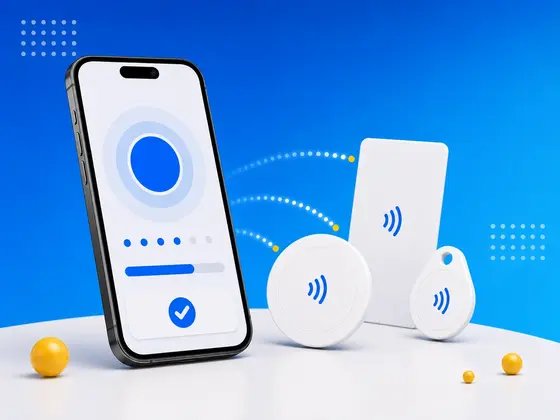
Most people know their iPhone can read NFC tags - tap to pay, scan a transit card, open a link. But the thing I keep having to convince people of is that your iPhone can also write to NFC tags, turning blank tags into smart triggers for just about anything.
I’ve spent years building NFC.cool, an app for reading and writing NFC tags, and writing is genuinely the part I never get tired of. Want a tag on your nightstand that silences your phone and sets an alarm? A tag on your desk that opens your work playlist? A tag at your front door that shares your Wi-Fi password with guests? Your iPhone can program all of these, and once you’ve done it once you’ll wonder why you waited.
This is the walkthrough I’d give a friend who just bought their first pack of tags: what you need, how to write the different types of data, and the practical projects I’d actually set up in minutes. If you’re brand new to the technology itself, my complete beginner’s guide to NFC tags covers the groundwork first.
What You Need
You only need three things to start writing, and none of them are expensive.
1. A Compatible iPhone
NFC tag writing requires iPhone 7 or newer running iOS 13 or later. If you bought your iPhone in the last eight years, you’re covered.
For the best experience, I’d reach for an iPhone with background NFC reading (iPhone XS and newer). These models can read NFC tags without opening an app first, which makes the tags you write far more pleasant to actually use. If you want to know exactly how the iPhone hardware handles all of this, I went deep on it in an insider look at NFC on iPhones.
2. Blank NFC Tags
You can buy blank NFC tags online for as little as €0.30-€1.00 each. They come in several form factors:
| Form Factor | Best For |
|---|---|
| Stickers (round, 25-30mm) | Surfaces, objects, posters |
| Cards (credit card size) | Wallets, business cards |
| Key fobs | Keychains, bag attachments |
| Wristbands | Events, access control |
| Coin tags (thick discs) | Embedding in objects |
Which chip should you buy?
If you asked me to pick one, for most projects NTAG216 is the sweet spot - 888 bytes of usable memory, widely compatible, and affordable in bulk. It’s the chip I recommend and test against most. Here’s the quick breakdown:
NTAG213 (144 bytes) - Enough for URLs and simple text. Cheapest option.
NTAG215 (504 bytes) - Enough for contact cards, Wi-Fi credentials, and multiple records.
NTAG216 (888 bytes) - Best all-rounder. The most headroom for contact cards, Wi-Fi credentials, and longer content like detailed vCards - what I recommend for most projects.
If you’re unsure, start with a mixed pack of NTAG216 stickers and stop overthinking it - they handle 90% of use cases. For the full chip-by-chip rundown, including which types iPhones actually like, I wrote a guide to NFC tag types for iPhones.
3. An NFC Writing App
Your iPhone needs an app to write data to tags. Apple’s built-in NFC support handles reading, but for writing, you need a dedicated app.
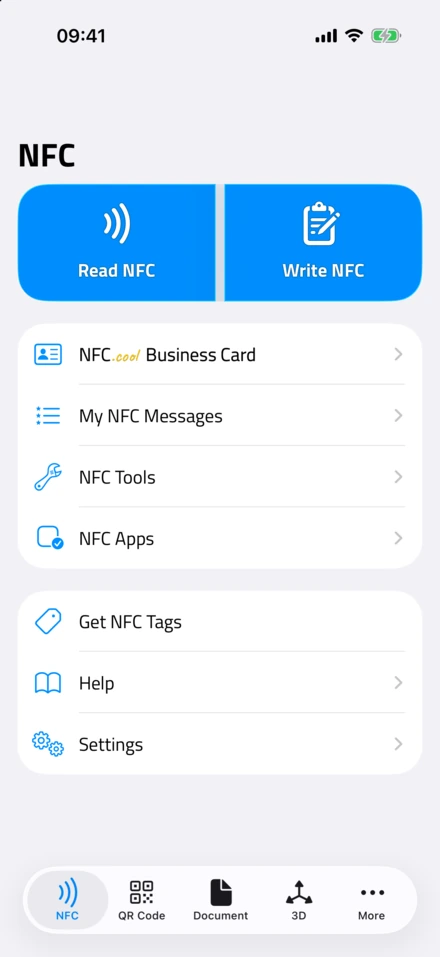
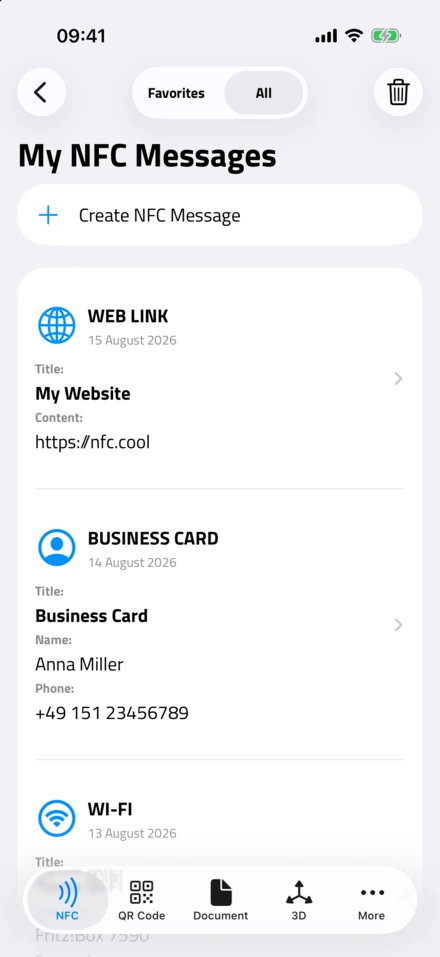
This is the part I’ve spent years on, so I’ll be upfront about my bias: NFC.cool Tools is purpose-built for exactly this, on both iPhone and Android. It supports writing all standard NDEF record types - URLs, text, Wi-Fi configurations, contacts, and more - with a clean interface that shows exactly how much tag memory you’re using. It also lets you lock tags, read technical details, and automate writing through iOS Shortcuts. You can see the full feature list on the NFC reader and writer page.
Other options exist (like Apple’s Shortcuts app for basic URL writing), but a dedicated NFC app gives you more control over what you write and how.
Step-by-Step: Writing Your First NFC Tag
I’ll start you where I start everyone: writing a URL to a tag. It’s the most common use case and the fastest win.
Writing a URL
Open NFC.cool Tools and tap the Write tab
Select “URL” as the record type
Enter your URL - for example,
https://nfc.coolTap “Write to Tag”
Hold your iPhone near the blank NFC tag - the top edge of your iPhone (where the NFC antenna is) should be within 2-3 cm of the tag
Wait for the success confirmation - you’ll feel a haptic tap and see a checkmark
That’s it. Anyone who taps that tag with their phone will now be taken to your URL - no app needed, no QR code to scan. The first time I saw a colleague’s face when a blank sticker opened a website, I knew this was the demo to lead with.
Pro tip: The NFC antenna on iPhones sits at the top edge of the phone, near the camera. For the strongest connection, hold the top of your iPhone directly over the tag. If you want to double-check what you wrote without an app, you can read NFC tags right from your browser on Android.
What Can You Write to NFC Tags?
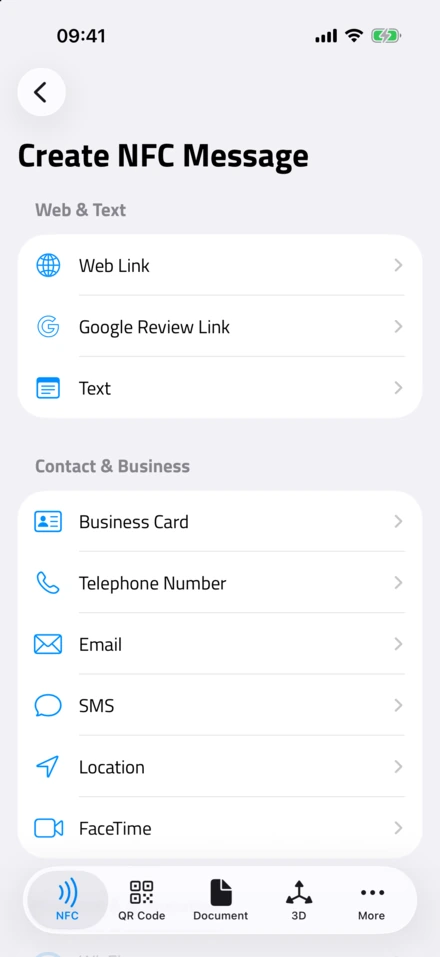
NFC tags use a format called NDEF (NFC Data Exchange Format) that defines standard record types. Once that model clicked for me, the whole technology stopped feeling like magic. Here’s what you can write:
URLs and Links
The most common use, and the one I reach for most. Write any web address, and tapping the tag opens it in the phone’s browser.
Practical uses:
Restaurant menu link on a table tag
Portfolio or LinkedIn profile on a business card
Product page link on retail shelf tags
Feedback form link at reception
Memory needed: ~30-80 bytes (most URLs fit on any tag)
Wi-Fi Network Credentials
Write your Wi-Fi network name (SSID) and password to a tag. Guests tap the tag and connect automatically - no typing long passwords.
How to write Wi-Fi credentials:
In NFC.cool Tools, select “Wi-Fi” as the record type
Enter your network name (SSID)
Enter the password
Select the security type (WPA2 or WPA3 for most home networks)
Write to the tag
Pro tip: Place a Wi-Fi tag near your router, on a keychain by the door, or inside a guest room. Label it “Tap for Wi-Fi” - in my experience this is the one tag every guest ends up thanking you for.
Memory needed: ~60-120 bytes depending on password length
Contact Cards (vCard)
Write a vCard contact to a tag. When someone taps it, your contact details pop up ready to save - name, phone, email, company, address.
This is essentially what a digital business card does, but baked directly into a physical tag. No app, no internet connection needed - the contact data lives on the tag itself.
How to write a contact:
Select “Contact” as the record type
Fill in the fields you want to share (name, phone, email, etc.)
Write to the tag
Memory needed: ~100-400 bytes depending on how many fields you include. Use NTAG215 or NTAG216 for contacts with addresses and notes.
One honest warning from the support emails I read: raw vCards on a tag can behave inconsistently on iPhone. If yours isn’t opening cleanly, I dug into the causes in why your vCard NFC tag isn’t working on iPhone.
Note: For a richer experience with photos, social links, and analytics, take a look at NFC.cool Business Card - it creates a hosted digital business card profile and can write the link to any NFC tag. When someone taps, iOS users see a native App Clip and Android users open a website on the nfc.cool domain - no app needed. In my own networking I’ve found this far more reliable than raw vCards.
Plain Text
Write any text message to a tag. Less common than URLs, but useful for:
Inventory labels (serial numbers, descriptions)
Instructions or notes attached to equipment
Easter egg messages in scavenger hunts
Asset tracking in warehouses
Memory needed: Varies by text length (~1 byte per character)
Phone Numbers and Email Addresses
Write a tel: or mailto: URI to trigger a phone call or compose an email when tapped.
Useful for:
Emergency contact tags on medical equipment
“Call for service” tags on vending machines
Support contact tags on products
App-Specific Data
Some apps can write custom NDEF records that trigger specific app actions. For example, you could write a record that opens a specific shortcut, playlist, or app screen.
Advanced: Writing with iOS Shortcuts
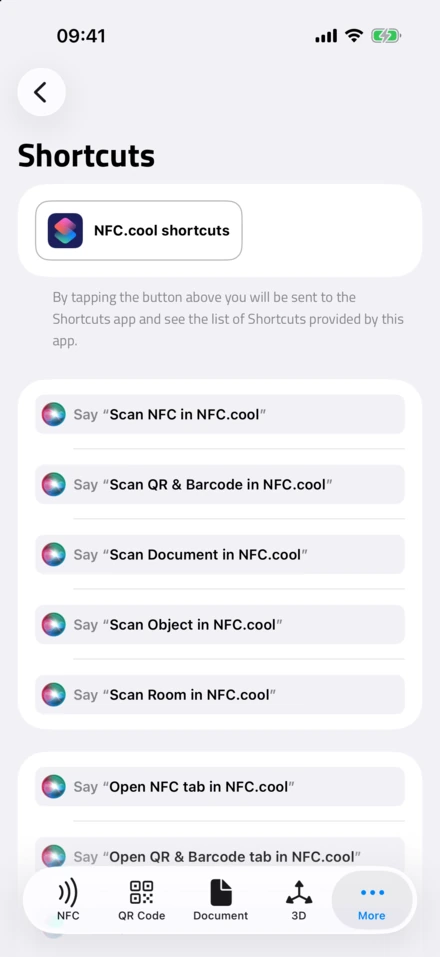
- NFC.cool's own actions. Every action the app adds to Shortcuts and Siri, one tap from the Shortcuts app.
This is where things get fun for me. Apple’s Shortcuts app has built-in NFC writing support, and NFC.cool Tools extends it further with its own Shortcuts actions.
Basic URL Writing with Shortcuts
Open the Shortcuts app
Create a new shortcut
Search for the “Set NFC Tag” action (under Scripting → NFC)
Configure what to write (URL, text, etc.)
Run the shortcut and tap a tag
This is useful for batch-writing multiple tags with the same data.
NFC.cool Tools Shortcuts Integration
NFC.cool Tools adds its own Shortcuts actions, giving you more options:
Write Tag - Write any supported record type programmatically
Read Tag - Scan and return tag data to your shortcut
Scan History - Access your recent scan results
This opens up automation possibilities. For example, you could create a shortcut that:
Asks for a product name
Generates a URL like
https://yoursite.com/product/{name}Writes it to an NFC tag
Logs the tag to a spreadsheet
Perfect for batch inventory tagging or event badge setup.
Practical NFC Tag Projects
These are the projects I keep coming back to - ready to build, and each one takes a few minutes:
Smart Home Tags
Nightstand Tag - “Bedtime Mode” Write a URL that triggers an iOS Shortcut to:
Enable Do Not Disturb
Set tomorrow’s alarm
Lower screen brightness
Start a sleep playlist
Desk Tag - “Work Mode”
Open your task manager
Start a focus timer
Connect to your work VPN
Play a concentration playlist
Door Tag - “Leaving Home”
Check weather forecast
Show commute time
Trigger smart home “away” scene
Business Tags
Conference Badge Tag Write your NFC.cool Business Card URL to a tag stuck on the back of your conference badge. Contacts tap your badge → your full digital business card appears.
Product Tags Write links to product documentation, warranty registration, or support pages. Attach to products or packaging.
Meeting Room Tags Write links to room booking calendars or Wi-Fi credentials. Stick near the door.
Creative Projects
Music Tags Write Spotify or Apple Music album links to NFC stickers. Stick them on physical album art, and tapping plays the album.
Board Game Tags Write links to rule PDFs or tutorial videos. Stick inside the box lid.
Recipe Tags Write links to favorite recipes and stick tags on spice jars or cookbook pages.
Locking NFC Tags
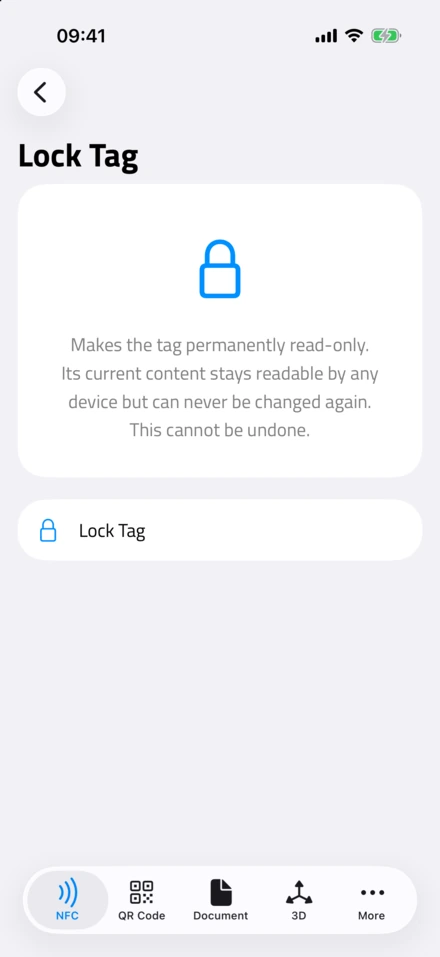
- Lock Tag. Its content stays readable on any phone but can never change again.
Once you’ve written a tag and you’re happy with its content, you can lock it. Locking makes the tag permanently read-only - nobody can overwrite your data. I treat this as a deliberate, final step, never something to tap through quickly, because there is no undo.
In NFC.cool Tools:
Tap the Lock option after writing
Confirm - this is irreversible
When to lock:
Tags in public locations (prevent tampering)
Product tags (protect your URLs)
Business cards (keep your contact data safe)
Any tag you don’t plan to rewrite
When NOT to lock:
Tags you might want to update later (Wi-Fi password changes, seasonal URLs)
Experimentation/learning - leave them rewritable while you test
Troubleshooting
Most of the “why won’t it write” questions I get land on one of these four causes. Here’s how I’d work through them.
“Unable to Write” Error
Tag might be locked. If someone (or you) previously locked the tag, it’s permanently read-only. You’ll need a new tag.
Not enough memory. Your data might be too large for the tag’s capacity. Try a tag with more memory (NTAG215 → NTAG216) or reduce your data.
Tag not positioned correctly. Move the top edge of your iPhone slowly over the tag. Some surfaces (metal, thick cases) can interfere.
Tag is damaged. NFC tags are durable but not indestructible. Extreme heat, bending, or puncture can kill them.
Writing Seems to Work But Tag Doesn’t Respond
Check NDEF format. The data must be written in NDEF format for phones to read it automatically. NFC.cool Tools handles this for you, but custom-written tags might have formatting issues.
iPhone model matters. Older iPhones (7, 8, X) require an app to read tags. iPhone XS and newer read tags automatically in the background.
Tag Works on Android But Not iPhone
Check the chip type. iPhones work best with NTAG-series chips (NTAG213, 215, 216). Some other chip types may not be compatible with iOS.
NDEF formatting. The tag must be NDEF-formatted. Some bulk-purchased tags arrive unformatted - write to them with NFC.cool Tools to auto-format them.
Tips for Getting the Most Out of NFC Tags
These are the small lessons I’ve picked up the hard way, so you don’t have to.
Label your tags. A blank sticker on a desk isn’t helpful. Use a label maker or Sharpie to indicate what the tag does (“Tap for Wi-Fi”, “Work Mode”, etc.).
Avoid metal surfaces. Metal interferes with NFC signals. If you must attach to metal, use anti-metal NFC tags (they have a ferrite layer that shields against interference). They’re slightly thicker and more expensive but work perfectly on metal surfaces.
Test before you stick. Write the tag, test it, then peel the adhesive and stick it in place. Peeling a stuck tag back off to rewrite it is the kind of small annoyance I’ve learned to avoid entirely.
Use the right tag for the job. Don’t waste NTAG216 (888 bytes) on a simple URL that takes 40 bytes. And don’t try to fit a full vCard on an NTAG213 (144 bytes).
Waterproof options exist. Epoxy-coated NFC tags are waterproof and more durable. Good for outdoor use, kitchens, or bathrooms.
Combine NFC tags with Shortcuts. The real power of NFC tags on iPhone isn’t just opening URLs - it’s triggering complex automations. An NFC tag can launch any iOS Shortcut, which can control smart home devices, send messages, log data, and more.
Frequently Asked Questions
Can I rewrite an NFC tag?
Yes, as long as the tag hasn’t been locked. Standard NFC tags can be rewritten 100,000+ times. Just write new data over the old data - no need to “erase” first.
How close does my iPhone need to be?
Within 2-4 cm (about 1-2 inches). The NFC antenna is at the top edge of the iPhone. Hold the top of your phone directly over the tag for the best connection.
Can I write to NFC tags without an app?
iOS Shortcuts has a built-in “Set NFC Tag” action for basic writes (URLs, text). But for Wi-Fi credentials, contacts, and more complex records, you’ll need an app like NFC.cool Tools.
Do NFC tags need batteries?
No. NFC tags are passive - they have no battery and draw power from your phone’s NFC reader when you tap them. Tags can last 10+ years because there’s nothing to run out.
Can I password-protect an NFC tag?
Yes. NFC.cool Tools can set password protection on NTAG tags, on both iPhone and Android. Note that this only prevents the tag from being overwritten - it does not stop anyone from reading what’s already on the tag. If you need the contents themselves to be unreadable without a key, you want encrypted data instead - see our guide to NFC Safe. Locking a tag is the other option: it permanently blocks any further writes.
Will NFC tags work through a phone case?
Yes, most phone cases are fine. NFC works through plastic, silicone, leather, and even thin wallets. Very thick cases (like heavy-duty rugged cases) or cases with metal plates (for magnetic car mounts) might interfere.
How many tags can I write with one iPhone?
Unlimited. There’s no restriction on how many tags you write. The limiting factor is the tags themselves, not your phone.
What’s Next?
Now that you know how to write NFC tags, the possibilities are wide open. My advice is the same as ever: start with one simple project - a Wi-Fi tag for guests or a business card tag - get the small win, and build from there.
If you’re looking for a powerful, easy-to-use NFC writing app, NFC.cool Tools is the app I’ve built to handle exactly this - from basic URL writing to advanced tag management, with iOS Shortcuts integration for automation.
And if you want to turn NFC tags into professional digital business cards, NFC.cool Business Card lets you create a beautiful card profile and write its URL to any NFC tag. The app UI and App Clip support 35 languages on iOS, and Android recipients see a website on the nfc.cool domain (currently English only).
Download NFC.cool Tools: App Store | Google Play
Download NFC.cool Business Card: App Store | Google Play