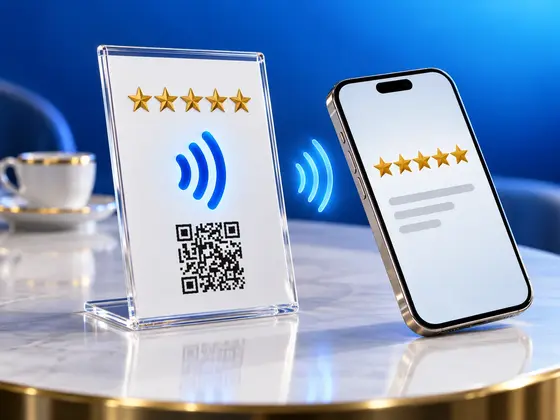
Over the last couple of years I’ve watched them pop up everywhere: small acrylic stands next to the till, on restaurant tables, at the hairdresser’s front desk. “Leave us a Google review”, five stars, a QR code and usually a little NFC symbol. Hold your phone close and a review page opens.
I build an NFC app for a living, so of course I wanted to know what was inside. Was there some special Google chip in there? A secret partnership?
No. It’s an ordinary NFC tag and a printed QR code, and both of them point to a link. That’s the whole trick, and it means you can build your own in an afternoon.
What’s Actually Inside a Google Review Stand
The NFC tag in these stands is the same kind of cheap sticker you can buy in packs of fifty. Somebody wrote a single web link onto it. The QR code next to it is that same link, printed as a pattern of squares, for anyone whose phone doesn’t do NFC or has it switched off.
The link itself is the interesting part. Google has a URL that takes a guest straight to the review form for one specific business, identified by its Place ID. Every business on Google Maps has one, and if yours isn’t there yet, Google explains how to create a Business Profile. Put that link on a tag, and tapping the stand becomes the shortest path from “that was a great evening” to a written review.
The Catches Google Doesn’t Tell You About
Before you build one, there are a few things I learned the hard way while testing.
The link can’t open the Google Maps app. This was the first thing I tried, because it seemed like the obvious experience: tap the stand, Google Maps opens, the review sheet slides up. I tried every variation of the link I could find. There is no way to do it. Google simply doesn’t seem to want review links opening the app directly.
The browser version is actually fine. What does work is a link that opens a page in the browser where the guest can pick their stars and write a few words right away. It’s quick, it doesn’t need any app installed, and it works the same on iPhone and Android.
Your guest has to be signed in to Google. A review is only counted when it comes from a Google account. Most Android phones are signed in to Google already, and many iPhone users are signed in to Google in their browser. Anyone who isn’t will be asked to sign in first. There’s nothing you or I can do about that, and honestly, it’s part of what keeps Google reviews from being completely spammed.
Why the Tables at Piano Negro Carry More than a Review Link
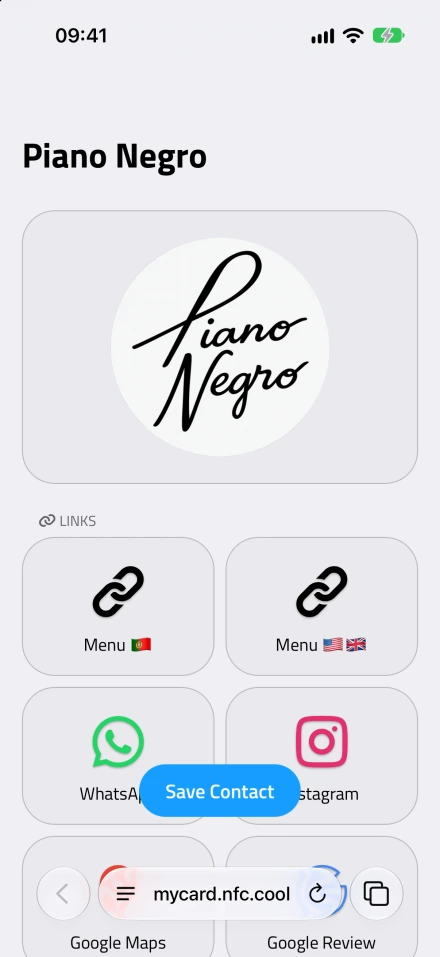
- Piano Negro's card. What a guest sees after holding a phone to the table stand.
Piano Negro is a bar in Coimbra that has been open since 1993. When I helped the owner set up their stands, we didn’t put just a review link on the tables. Somebody sitting down at a table isn’t thinking about reviews yet. They want to see what’s on the menu.
So every table at Piano Negro has a stand with the bar’s NFC.cool Business Card on it. Hold a phone to it, or scan the QR code, and the card opens with everything a guest might want, one tap each:
the menu, in Portuguese and in English
WhatsApp
Instagram, TikTok and Facebook
Google Maps
the Google review link, and TripAdvisor
and even the bar’s Spotify playlist
You can open their card yourself and see exactly what a guest sees. And guests use it the way you’d hope: they open the menu, they look the bar up on Instagram, and they leave a review, all from the same stand.
The other thing I like about this setup is that the stand never goes out of date. The tag and the QR code hold the card’s link, not the menu itself. When the menu changes, you change the link in the app, and every table has the new one. No reprinting, no rewriting tags.
What You Need
The shopping list is refreshingly short:
NFC tags. A simple NTAG213 sticker is plenty, and the links in this post fit on it with room to spare. If you’re unsure about tag types, my guide to NFC tags for iPhones explains the differences.
Clear acrylic displays where you slide in a printed card. These are sold as menu or sign holders and cost a few euros each.
A color printer.
NFC.cool Business Card for the table stands.
NFC.cool Tools for the review link and for protecting your tags with a password, on iPhone and Android.
The Table Stand: Your Business as a Business Card
Despite the name, a Business Card doesn’t have to be about a person. You can leave the name fields empty and fill in just your company name and logo, and the card shows up as your business.
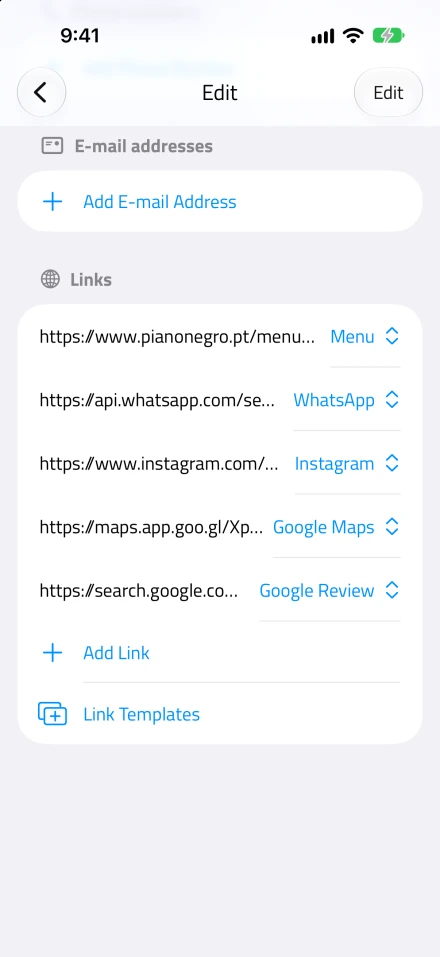
Step 1: Add your links
Under Links, tap Add link for everything a guest might look for: your menu, WhatsApp, Instagram and whatever else you’re on, your Google Maps location and your Google review link. If your menu is a PDF, it needs to live somewhere online, like your website, so you can link to it.
Give each link a name your guests understand at a glance, like “Menu” or “Leave us a review”. Piano Negro has two menu links, one per language, so visitors from abroad get a menu they can read.
If you don’t have your review link yet, NFC.cool Tools makes one for you with Google Review Link. I show how in the cashier stand section below.
Step 2: Write the tag and save the QR code
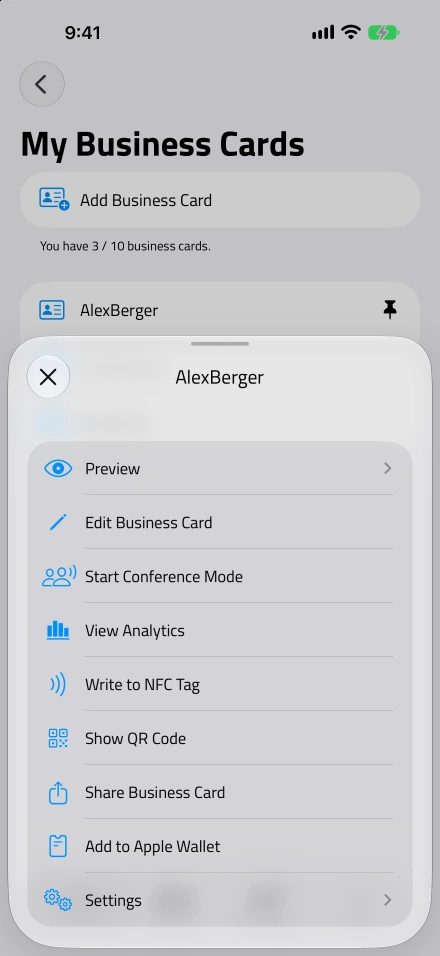
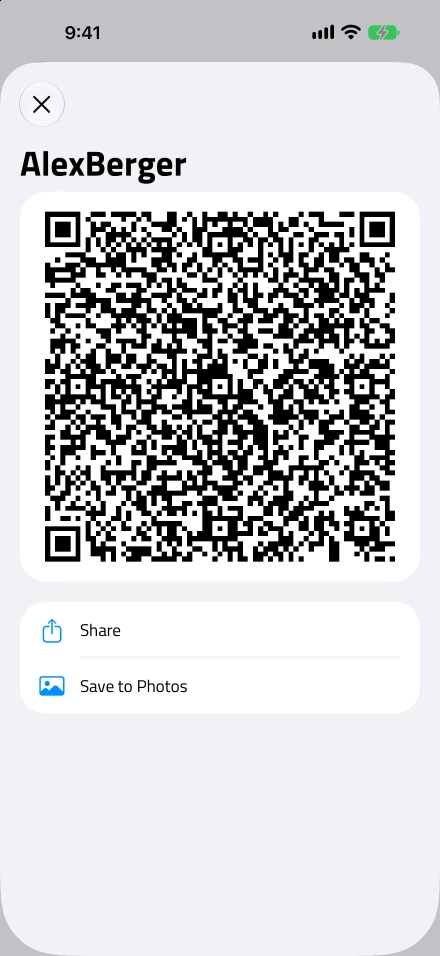
Open the card’s actions and pick Write to NFC Tag, then hold your phone to the sticker. For the printed card, pick Show QR Code and Save to Photos, and you have an image you can drop into any design.
Step 3: Print and test
Design a simple card for the stand: your logo, a short line like “Menu, Instagram and more”, the QR code, and a small NFC symbol with “or hold your phone here” next to it. Print it, slide it into the display, and stick the tag behind the card, right where the symbol is. Acrylic and paper don’t block NFC at all, so the tag reads perfectly through them. Just keep it away from metal, which does.
Then test it with a couple of different phones before it goes on a table.
The Cashier Stand: Straight to the Review Page
Piano Negro keeps it to the table stands. If I were setting up a shop from scratch, I’d add one more stand, right at the cashier, with nothing on it but the review link. That’s the moment people have just finished their visit, the experience is fresh in their minds, and nobody’s waiting for anything anymore. One tap and they’re on the review form, no menu in between.
Step 1: Create the review link
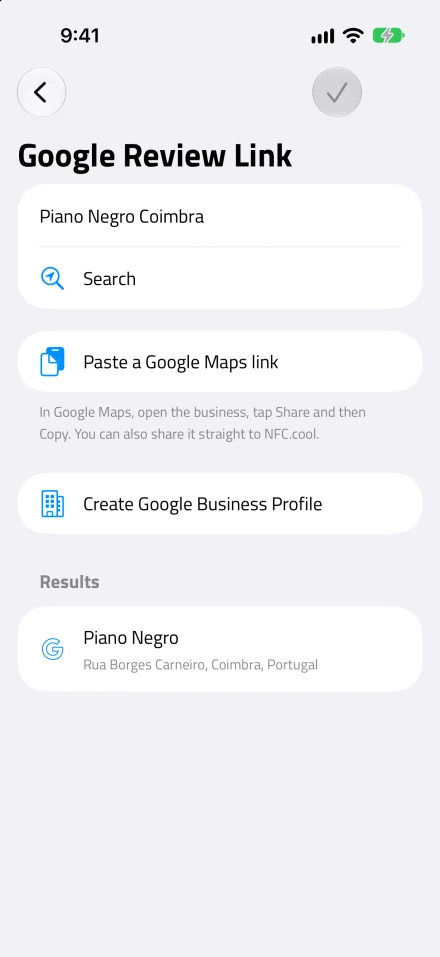
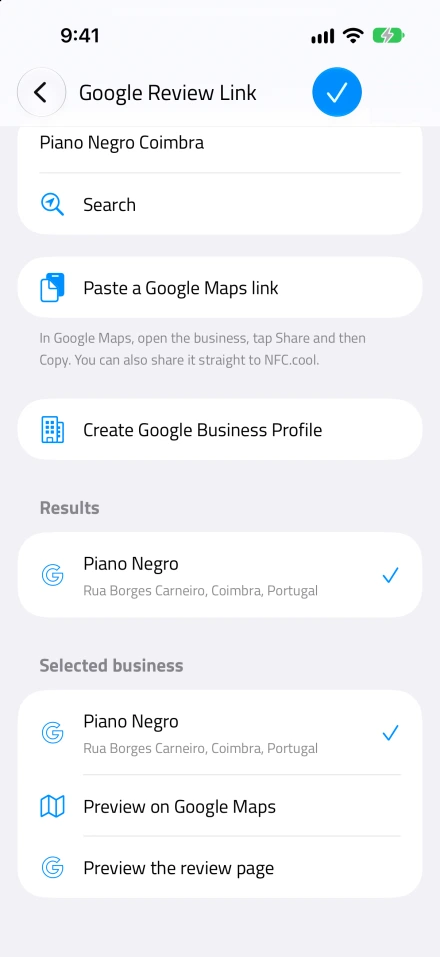
Open NFC.cool Tools, go to create a new NFC message and pick Google Review Link. Type the name of your business and pick it from the results. The address is shown underneath each one, which helps if there are a few places with similar names in town.
There’s an even quicker way if you already have Google Maps open. Find your business there, tap Share, then share it straight to NFC.cool, or copy the link and paste it in. The app reads the business out of the Maps link for you.
Before saving, tap Preview the review page. This opens exactly what your guests will see, so you can make sure it’s the right business. It sounds obvious, but I’ve seen a café with the same name two streets away, and you really don’t want to collect reviews for your competitor.
If your business doesn’t show up at all, it probably doesn’t have a Google Business Profile yet. The same screen links to Google’s guide for creating one.
Step 2: Write the tag
Save the link and write it to your NFC sticker by holding the phone close to it. If you’ve never written a tag before, I walk through it in how to write NFC tags with an iPhone.
Step 3: Make the QR code
Not everyone will tap. Some people don’t know their phone can, and on Android NFC can be switched off. The QR code is the safety net.
Create a QR code with the same Google Review Link option in the QR section of the app. You can share it as an image from there, or open it in QR Code Studio first to give it your colors so it matches the rest of the card. Then print the card with a line like “Enjoyed your visit? Tell us on Google”, and slide it into the display with the tag behind it.
Protect Every Tag with a Password
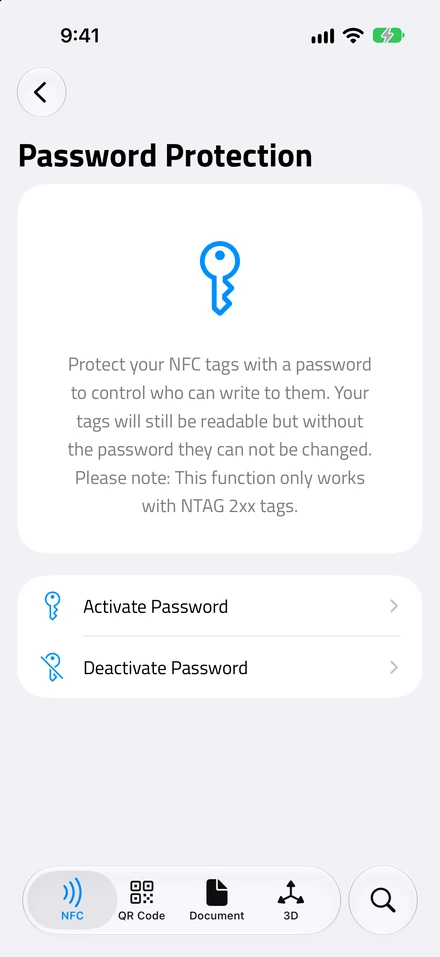
- Password Protection. In NFC.cool Tools, for NTAG 2xx tags.
A stand sits in public, and that goes for the tables and the cashier alike. Without protection, anyone with an NFC app could walk past and rewrite your tag into something else, and you wouldn’t notice until a guest mentions it.
You could lock the tag for good, but I’d rather password-protect it. In NFC.cool Tools, open Password Protection, pick Activate Password, enter a password and hold your phone to the tag. Guests can still read it like before. Only writing needs the password. And unlike locking, it’s reversible: if your business ever moves, or you want the tag to point somewhere new, you remove the password and write it again. This works on the Business Card tags too, since the password protects the tag, not what’s on it. It needs an NTAG 2xx tag, like the NTAG213 stickers from the shopping list.
Turn on Save for later so the app remembers the password for you. Losing it means you can’t change that tag anymore.
Ask Everyone, and Ask for Honesty
One thing I’d ask you to be careful about: invite every guest to leave a review, and ask for an honest one, good or bad, not for five stars. Google’s review policy doesn’t allow businesses to only ask the customers they think are happy, or to offer anything in return for a review, like a free drink or a discount. Breaking those rules can get reviews removed or worse. And honestly, a mix of real reviews looks far more trustworthy to the next guest than a wall of suspiciously perfect ones.
Bottom Line
A Google review stand is one of those things that looks like a product but is really just a link on a sticker. And once you’re putting a sticker on every table anyway, it might as well carry your menu, your socials and your review link at the same time.
For the table stands you need NFC.cool Business Card, on iPhone and Android. Google Review Link and Password Protection are in NFC.cool Tools, on iPhone and Android. And if you build one for your own shop, I’d love to see a photo.