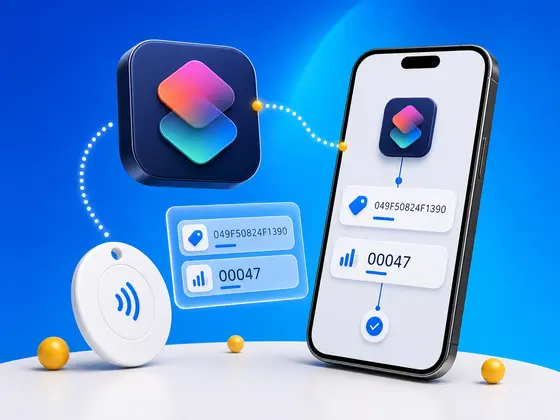
A week ago I walked through how the NFC Tap Counter works: the chip counts its own scans, the app embeds placeholder bytes, and the tag substitutes the live count and tag ID into whatever it is carrying on every tap. That post stops where the tag does, which is at the moment the values arrive on your phone.
The question I have been getting since is the obvious next one: “great, the tag is handing me 049F50824F1390x000007 - now what?” If you are on iPhone and you want to act on those values inside a Shortcut, you have to parse them. That is a small but fiddly piece of string work, and I would rather you not have to write it yourself.
So I built two Shortcuts and I am sharing them as iCloud links. One is the brain. The other is a demo that uses the brain.
What the Tag Hands You
Before the shortcuts: a quick refresher on what they actually receive, because it matters for how you use them.
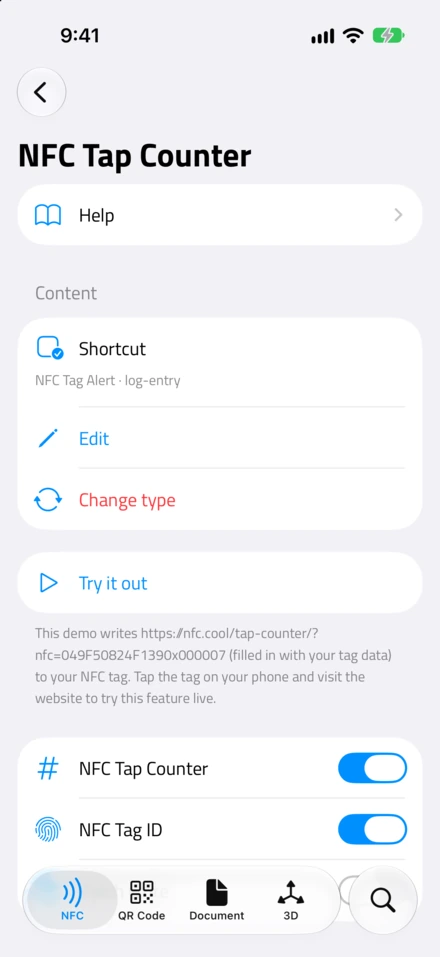
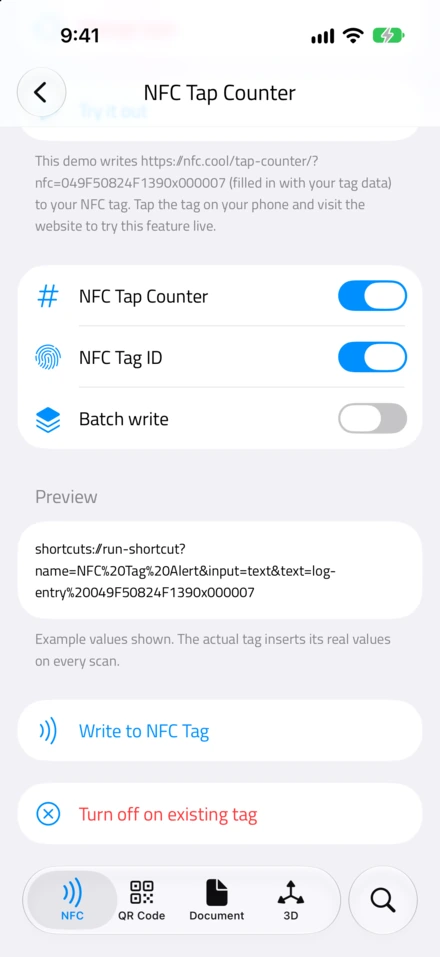
In the Tap Counter setup screen you pick a content type for the tag: URL, Email, SMS, or Shortcut. When you turn on the Tap Counter and / or Tag ID toggles, the app embeds placeholder bytes inside that content, and the chip swaps them for the live values on every read. Using 049F50824F1390 as the tag ID and 000007 as the count, the four content types end up looking like this:
URL:
https://nfc.cool/tap-counter/becomeshttps://nfc.cool/tap-counter/?nfc=049F50824F1390x000007Email body:
Hi, here's my card.becomesHi, here's my card. 049F50824F1390x000007SMS body:
Order confirmed!becomesOrder confirmed! 049F50824F1390x000007Shortcut input:
log-entrybecomeslog-entry 049F50824F1390x000007
That URL above is a real one. Our live tap counter test page is set up to read the ?nfc= value straight out of its own address bar, so if you want to see the substitution happen before writing your own automation, write a tag pointing at https://nfc.cool/tap-counter/ with both toggles on, tap it, and the page will show you the tag ID and the count it just received.
When the content type is Shortcut, NFC.cool runs the chosen shortcut through shortcuts://run-shortcut?name=Your%20Shortcut&input=text&text=<payload>, with the appended NFC values already in the text. Your shortcut’s input is a plain text string. Your only job is to pull the tag ID and the count back out of it.
Depending on which toggles were on when you wrote the tag, you may get the full pattern (14 hex characters, an x, then 6 hex characters), or just the 14-hex tag ID, or just the 6-hex count. The parser handles all three.
Parse NFC Tap Counter - the Reusable Parser
This one is the brain. It does no UI, takes a single text input, and returns a Dictionary. That is deliberate: a utility shortcut with no UI composes cleanly inside anything else you build, and a Dictionary is the easiest thing to consume from another shortcut with the Get Dictionary Value action.
Here is what the Dictionary contains:
tagID- the 14-character hex tag ID, or an empty string if the toggle was off.count- the scan count as a decimal number (so000007comes out as7, and00000Aas10), or empty if the toggle was off.countHex- the original 6-character hex count, in case you want to use it verbatim. Empty if absent.hasTagID,hasCount- booleans for branching, so you can write If hasCount is true without having to test the string yourself.content- the input with the NFC payload cleanly stripped off, so the rest of your shortcut sees the input the way it was before the tag dressed it up. If the input was a URL with?nfc=..., you get the URL back without it. If it was an email body with the tag ID appended, you get the body back without it.raw- the unmodified original input, in case you want to log it or fall back to it.
To call it from your own shortcut, the recipe is three actions:
Receive Shortcut Input as text (the NFC payload arrives here).
Run Shortcut -> Parse NFC Tap Counter, with that text as input. Turn off “Show When Run” so it stays invisible.
Get Dictionary Value -> pick
tagID,count,content, or whichever keys you care about.
That is it. From step 3 onwards you can do whatever you want with the values: branch on hasTagID, log count to a Note, fire a webhook with the JSON, anything. The parser does not assume what your shortcut wants to do with the result, which is exactly why it is small and reusable.
A note on the count: it is a real Number in the Dictionary, not a text string, so you can feed it straight into a Calculate or an If comparison without converting it again. The hex-to-decimal step is already done.
NFC Tag Alert - the Demo
This one is a demo I would still install on day one, even if you have no intention of using alerts in production. It takes a text Shortcut Input, runs the parser, and shows a single alert titled NFC Tag Scanned with two lines:
Tag ID: 049F50824F1390
Scans: 7
The reason I would install it first is that it is the fastest possible sanity check for a counter-enabled tag. Write a tag from NFC.cool Tools with content type Shortcut and name NFC Tag Alert, turn on the Tap Counter and Tag ID toggles, write it, tap it. An alert pops up with the real values from your physical tag.
If the alert shows the values you expected, your tag is doing its job and you can move on to building something more elaborate. If the count is wrong or the tag ID is missing, you know it is the tag (or the toggles you picked when writing it) and not your own shortcut. Eliminating one whole class of “is this even the chip’s fault?” debugging is worth installing a five-action shortcut for.
If you ever wonder how to call the parser correctly, this shortcut is also the smallest possible worked example. Open it, look at the five actions, copy the structure into your own shortcut.
Wiring It Into Your Own Shortcut
There are two ways tag content gets routed into your shortcut. The parser is happy with both.
Tag-driven (the Shortcut payload). Write the tag with content type Shortcut, pick your shortcut by name, turn on whichever toggles you want. From now on every tap launches your shortcut with the NFC payload already in the input. Inside your shortcut, call Parse NFC Tap Counter on that input and you have tagID / count ready to use.
URL-driven (the URL payload). This is the more common case. The tag carries a URL, your phone opens that URL on tap, and the count rides along as ?nfc=.... If you want a Shortcut to handle the tap instead of (or alongside) a browser, you can: route the URL through a Shortcut that handles a Safari web page input, then run Parse NFC Tap Counter on the URL. The parser strips the ?nfc= segment cleanly and gives you back the URL without it as content, so you can pass that on to a browser, an API call, or anywhere else that expects a plain URL.
Here is a four-action example for “log every scan to a note in Apple Notes”:
Receive Shortcut Input as text.
Run Shortcut -> Parse NFC Tap Counter, with the input as text.
Get Dictionary Value -> three lookups in a row for
tagID,count, andcontent. Store each in a variable.Append to Note -> a single line like
[Current Date] tag=<tagID> count=<count> url=<content>.
You now have a running tap log written by the tag itself. No backend, no third-party analytics, no account anywhere.
A Few Ideas to Build On
A handful of small things the parser unlocks, written down so you do not have to invent them from scratch:
Branch on the tag ID. One shortcut, many tags. Add an If action per known tag ID: if the office door tag was scanned, mute notifications; if the studio tag was scanned, set a focus mode; if the kitchen tag was scanned, start a timer. The tag ID identifies the physical tag, not the content, so you can give every tag the same URL and still react to each one individually.
Pick a winner at scan N. Combine
hasCountwith a comparison. Ifcountequals 100, fire a confirmation message; for every other scan, do the regular handling. The chip enforces order; your shortcut just reads it.Send to a webhook. Pair this with the NFC.cool Webhooks feature if you want server-side handling without writing an iOS app: post the parsed values as JSON, let the server take it from there. Two iOS actions and your tag is wired into anything that speaks HTTP.
Log to a file or Note. The simplest one and surprisingly useful. Append
timestamp, tagID, countto a running file in iCloud Drive or a single Note, and you have a tap log you can scroll through or graph from later. Good for engagement tracking on a single tag without standing up infrastructure.
If you build something neat with these, I would genuinely like to see it.
A Quick Thanks
Both of these shortcuts were built with Shortcuts Playground, Federico Viticci’s plugin for generating iOS Shortcuts from natural language. It is a great tool, and I want to thank him for shipping it - without it these two would have taken me a lot longer to put together.
A Quick Note for Android
Shortcuts is an Apple app, so these two only run on iPhone. The Tap Counter feature itself works on both platforms though, because the substitution happens inside the chip and does not care which phone is reading the tag. On Android, the URL, Email, and SMS payload types behave the same way they do on iOS; if you want similar automations there, apps like Tasker or MacroDroid can take a URL with ?nfc=... and pull the values out with their own string-handling actions. The format on the wire is the same.
Try It
If you want the deeper explanation of how the Tap Counter feature actually works under the hood, that is in the previous post. And if you want to see a counter-enabled tag in action without setting up your own automation first, our live tap counter demo page reads the ?nfc= value straight out of its own URL: write a tag that points there, tap it, watch the count and tag ID appear.
The NFC Tap Counter feature itself lives in NFC.cool Tools, on iPhone and Android. For the full set of tools I have built around NFC, take a look at the NFC reader and writer feature.