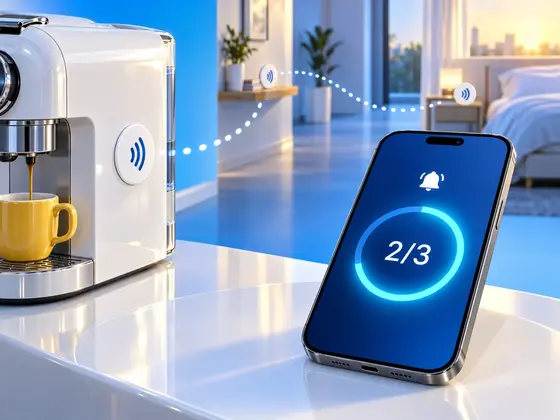
Being a founder has a rhythm that doesn’t care about office hours. The best coding happens late, when the messages stop and the house is quiet, and before I know it it’s two in the morning. The alarm, of course, still goes off at the same time. And I hit snooze. Then again. Then a third time, until the morning I had planned is half gone.
I spent a while thinking about what I could actually do about it. A louder alarm? I’d just learn to sleep through it. Putting the phone on the other side of the room? I’d walk over, press Stop and crawl back into bed. The problem was never hearing the alarm. The problem was that stopping it took one tap and zero thought.
Then I had the idea: I spend my days building an app for NFC tags. Why not combine the two, and lay out a trail of tags I have to follow every morning before the alarm lets me go?
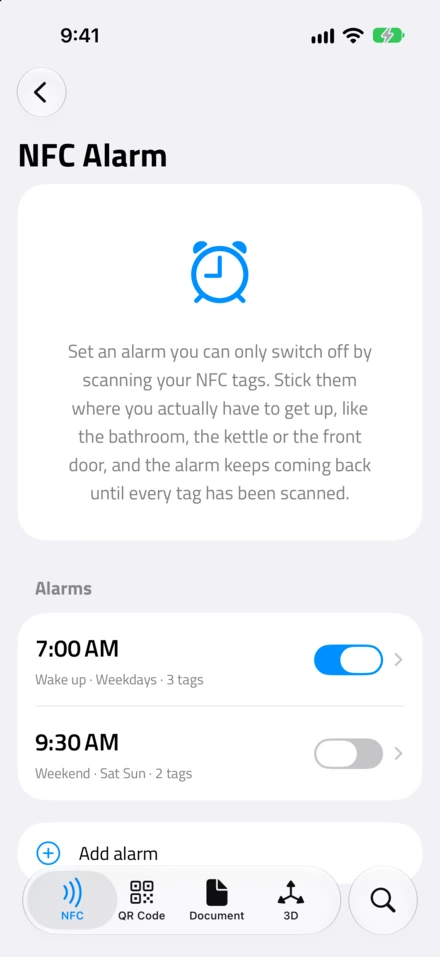
That’s NFC Alarm, and it’s now part of NFC.cool Tools on iPhone and Android.
A trail from the bed to the coffee machine
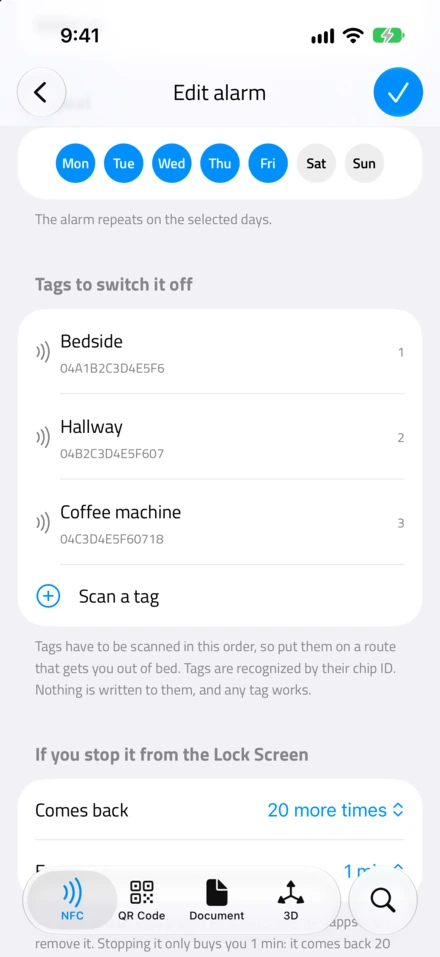
My trail has three stops. The first tag sits next to my bed. The second one is on a shelf in the hallway. The third one is stuck to the coffee machine.
When the alarm rings, I have to scan all three, and in that order. Scanning the tag by the bed is easy, it’s right there. But then I have to stand up and walk to the hallway, and by the time I reach the coffee machine I’m up, on my feet, in the exact spot where my morning starts. At that point going back to bed would feel silly. Might as well press the button for a coffee.
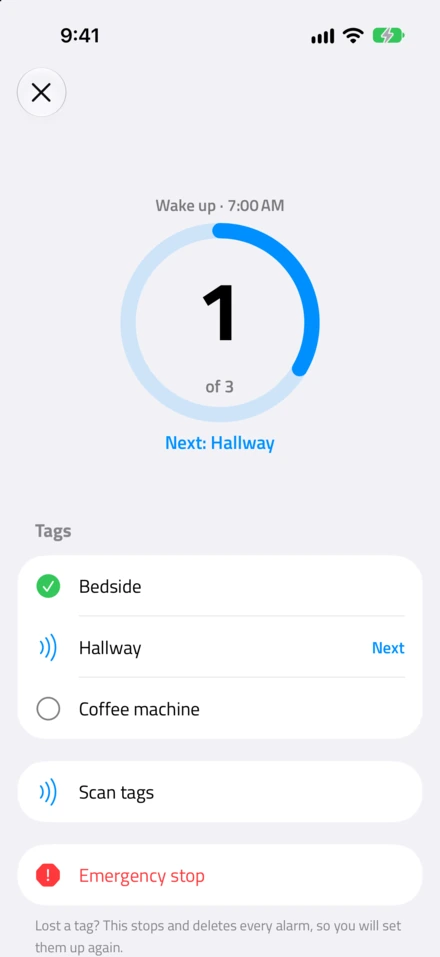
The order matters. If you could scan the tags in any order, you could keep all three on the nightstand and be done without moving. So the app waits for the next tag on the route, and if you hold up the wrong one it tells you so: “That’s not Hallway”. Once the last tag is scanned, you get a little confetti, a “Good morning” and the alarm is off for the day. Tomorrow it rings again as usual.
And yes, it works. The trail gets me up, which is more than I can say for any alarm I had before.
The Stop button I couldn’t remove
This was the part that took the most thinking. NFC Alarm is built on AlarmKit, Apple’s framework that lets apps ring a real alarm, the kind that goes off in silent mode and fills the Lock Screen like the Clock app does. It’s exactly what an alarm app needs, with one catch: every AlarmKit alarm comes with a Stop button drawn by the system. An app can’t remove it, hide it or restyle it.
So on paper, an alarm that insists you walk to your tags ships with a button that ends it in one tap. Not great.
My way around it: an NFC Alarm isn’t one alarm. It’s a whole chain of them. Behind the time you set, the app schedules follow-up alerts a few minutes apart. By default that’s 20 more, one minute apart, and you can pick 5, 10, 15 or 20 follow-ups and a gap of 1, 2, 3 or 5 minutes. Pressing Stop on the Lock Screen only silences the one that’s ringing right now. A minute later the next one goes off. Only scanning the whole trail cancels the rest of that morning’s chain, while the alarm itself stays set for the next day.
Think of the Stop button as a mute button with a very short battery.
AlarmKit gives an app exactly one button of its own next to Stop. Most alarm apps would put a snooze there. I used it for Scan to stop, which opens the app straight into the scan screen. So there’s no snooze on the Lock Screen at all, on purpose.
Two smaller details that came out of testing it on myself:
While you’re actually scanning, the ringing pauses. Nobody wants an alarm blaring in their hand while they’re holding the phone to a tag. If you give up halfway, though, the next alert in the chain comes back anyway.
While the alarm is ringing, the app won’t let you switch it off, delete it or edit it from the alarm list. I found those loopholes the honest way: by being very tired and very creative at 7 in the morning.
The emergency exit
Tags get lost. A sticker falls off the coffee machine, a tag breaks, or you’re staying somewhere else for the night. An alarm you can never stop would be a terrible idea, so there’s an Emergency stop on the scan screen, and it always works, with or without tags.
But it asks you to type this sentence, word for word:
“Please stop, I am aware that I need to setup all my tags again.”
That’s deliberate. I wanted the way out to take about as long as walking the trail, so it’s never the lazy option. And it comes with a real price: the emergency stop stops and deletes every alarm, so afterwards you get to set up all your tags again. It’s there for when something is actually broken, not for a Tuesday when the bed feels extra comfortable. I built it to punish myself, and it does.
Why NFC, and not a photo of the sink
There are alarm apps that make you take a photo of your bathroom sink or scan a barcode on your toothpaste. They work. But I like NFC for this, and not only because it’s in the name of my app.
An NFC tag, on its own, is bare metal. A tiny chip with an ID and nothing else, sitting on a shelf. What I enjoy most about building NFC.cool is making sense of that bare metal: turning a sticker that costs a few cents into something that actually does something in your life. With NFC Alarm the tag doesn’t even need any content on it. The app recognizes each tag by its chip ID, and nothing gets written to it. Any tag works, including that pack of spare stickers in your drawer. It also doesn’t care about light: scanning a tag works in a dark hallway, where a camera would struggle, and there’s no aiming involved.
If you don’t have tags yet, my beginner’s guide to NFC tags explains which ones to buy.
Setting it up
NFC Alarm needs an iPhone with iOS 26 or later, because that’s where AlarmKit lives, or an Android phone with Android 8.0 or later. You’ll find it in the NFC tab under NFC Apps. Create an alarm, pick the time and the days, then scan the tags you want in the order you want to walk them. You can give each tag a name so you know which one is next. Put them on a route that actually gets you out of bed. Next to the bed is a good start, the kitchen is a better finish.
NFC Alarm is free, and it’s in NFC.cool Tools on the App Store and on Google Play. Your coffee machine is waiting.